
Import contacts
This feature will allow you to import contacts from a text file. Import contacts option is available on the left side menu. You have two options while importing contacts.
Simple
This option allows you to enter contacts manually.
- Press + ADD CONTACT button.
- Select Simple.
- Enter contact.
- Press SAVE button.
Paste
This feature allows you to copy-paste a list of email addresses directly into the system.
To import contacts :
- Press + ADD CONTACT button.
- Select Paste.
- Select tags to which you would like to add imported contacts.
- Press PREVIEW to map data in your contact list and then SAVE button.
Import file
To import contacts :
- Press + ADD CONTACT button.
- Select Import file.

- Select a file to be imported.
- Select tags to which you would like to add imported contacts.
- Map fields in your file with fields in Contacts and press SAVE button.
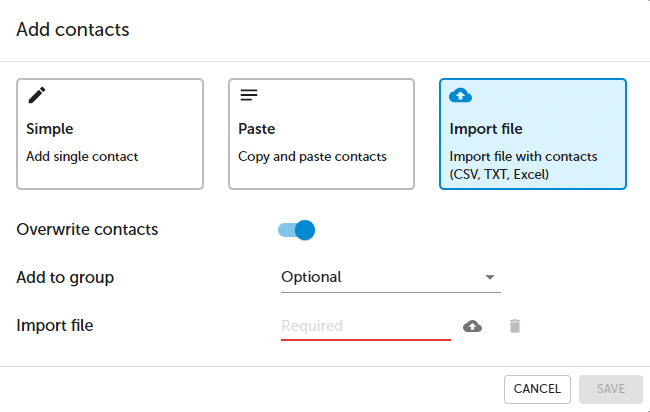
NOTE. If you are updating contact details other than email, we recommend selecting Overwrite contacts option. This way, the system knows it needs to replace contact details stored in the address book. Collected data and reports will not be affected.
Download contacts templates
Download contacts templates (360 Feedback)
| 360 Survey | Contacts template (Google Docs) | ![[D]](https://www.surveylab.com/UserFiles/640d81fbf8d6/Image/ico_material/baseline_cloud_download_black_18dp.png) Download Download |
| 360 Survey | Contacts template (Excel) | Download |
For easier contacts import, we recommend to prepare a file with the following structure :
Email; First name; Last name; Phone; C1; C2; C3; C4; C5; … ; C40
Example
[email protected]; John; Smith; 48501501501; New York; IT Specialist
List of import file elements
| Field name | Description |
|---|---|
| Email. | |
| firstName | First name. |
| lastName | Last name. |
| phone | Telephone (in format xxxxxxxxxx or 48xxxxxxxxx). |
| custom1 … 40 | Custom fields 1 … 40. |
| language | Language. ISO format, eg. PL, EN, DE. |
| self | 360 | Self-assessment email. |
| coworker | 360 | Peer email. |
| manager | 360 | Manager email. |
| subordinate | 360 | Direct report email. |
| customer | 360 | Customer email. |
| supplier | 360 | Supplier email. |