
Automatic Zendesk ticket creation
With SurveyLab, you can automatically create support tickets in the Zendesk system, based on the survey responses. You just need a few steps to configure Zendesk and SurveyLab to work together.

Application :
- Create a ticket automatically as a new response is collected.
- Create a ticket automatically as a new response meets certain criteria eg. NPS score lower than 7.
Zendesk
API
- Log into your Zendesk account and go to the
![[S]](https://www.surveylab.com/UserFiles/640d81fbf8d6/Image/ico_material/baseline_settings_black_18dp.png) Admin section.
Admin section.
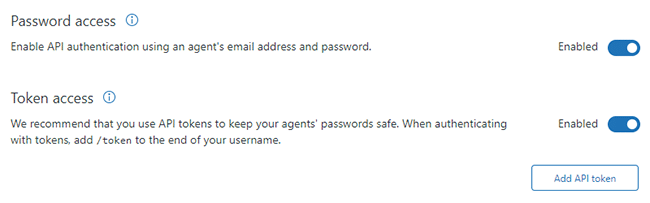
- Press Apps and Integrations / API.
- Enable Token access.
- Press Add API token button.

- Enter a label for API token eg. “SurveyLab” and copy your API token.
- Press Save button.

SurveyLab
Account settings
- Go to Account Settings.
- Go to Integrations.
- Enter Zendesk API token (copied from Zendesk).
- Enter your Zendesk user login.
- Enter Zendesk REST API URL (https://yourlogin.zendesk.com/api/v2/).
Create notification
- Press Settings button.
- Press Notifications button.
- Press + ADD NOTIFICATION button.
- Enter notification name and select survey.
- In the Action section, select Send : Zendesk.
- Enter ticket name and body.
Survey link
If you are using URL Link collector, please remember to add /[email protected]/ parameter to the link.
Example
You can use the following variables to create a ticket in Zendesk.
| Variable | Description |
|---|---|
| {surveyName} | Survey name. |
| {firstName} | Respondent’s name. |
| {lastName} | Respondent’s last name. |
| {email} | Respondent’s email. |
| {reportLink} | Survey report link. |
| {reportName} | Report name. |
 Functionality is available in the Professional and Enterprise plan.